

ProTrader is Vantage’s own platform, built around TradingView-powered charting, which lets you analyze markets on familiar TradingView-style charts while your orders route through your Vantage account. This guide covers how to set it up.
What ProTrader actually is
ProTrader combines TradingView’s charting engine with Vantage’s trade execution, so you get TradingView’s indicators, drawing tools and layouts alongside direct order placement on your live or demo Vantage account. It runs in the browser, with no separate download required, and is available alongside MT4 and MT5 on the same account.
Setting it up: step by step
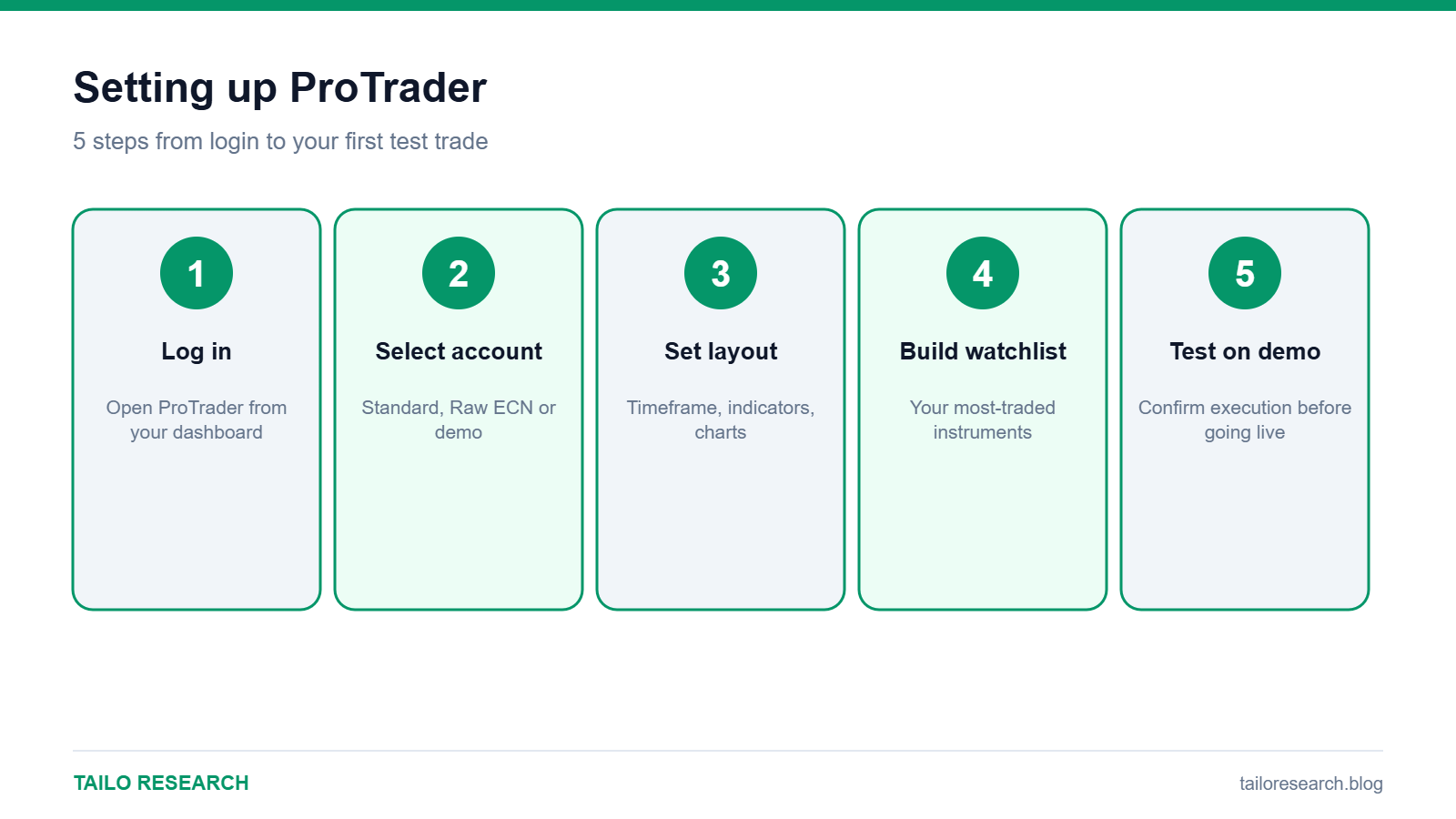
- Log in to your Vantage client portal and open ProTrader from your account dashboard
- Select the account (Standard, Raw ECN or demo) you want to connect
- Choose your default chart layout, timeframe and preferred indicators, the same way you would in TradingView itself
- Set up your watchlist with the instruments you trade most, such as NAS100, US indices or major forex pairs
- Place a small test trade on a demo account first to confirm order execution, stop-loss and take-profit placement work as expected
What carries over from TradingView, and what does not
- Carries over: charting tools, most technical indicators, drawing tools, multiple timeframes and layout customization
- Does not carry over automatically: TradingView Pine Script strategies you have built on TradingView.com itself may need to be recreated or connected separately, depending on how they are structured
- Execution: orders placed in ProTrader route through Vantage, not through a separate TradingView brokerage connection
MT4/MT5 vs ProTrader: when to use which
If your workflow is chart-first — marking levels, reading price action, running TradingView-style technical analysis — ProTrader is the more natural fit. If you rely on expert advisors, custom MQL scripts or automated strategies built for MetaTrader, MT4 or MT5 remains the better choice, since ProTrader is not designed for MQL-based automation.
Common setup issues
- Chart layouts not saving: confirm you are logged into the same account session before customizing layouts
- Indicators missing: some premium TradingView indicators from third-party publishers may not be available inside ProTrader
- Order size mismatches: double-check lot size conventions match your account type before placing your first live trade
Key takeaways
- ProTrader combines TradingView-style charting with direct Vantage order execution, no separate download required.
- Use ProTrader for chart-first, discretionary trading; use MT4/MT5 for expert advisors and automated strategies.
- Test your setup on a demo account before switching to live trading.
Ready to open an account? Open a Vantage account. This is an affiliate link: we may earn a commission at no extra charge from us. CFDs are complex instruments and carry a high risk of losing money rapidly due to leverage; most retail accounts lose money.
Educational content only, not investment advice. Trading and investing involve risk, including the loss of your capital. Read our Risk Disclaimer and Affiliate Disclosure.


Leave a Reply